Inspection Templates
Learn how to create inspection forms for your equipment.
Overview
Inspection templates define what gets checked during an inspection:
- Questions and checkpoints
- Pass/fail criteria
- Required documentation
- Inspection intervals
A well-designed template ensures consistent, thorough inspections.
Accessing Templates
- Navigate to Admin > Inspection Templates
- View all available templates
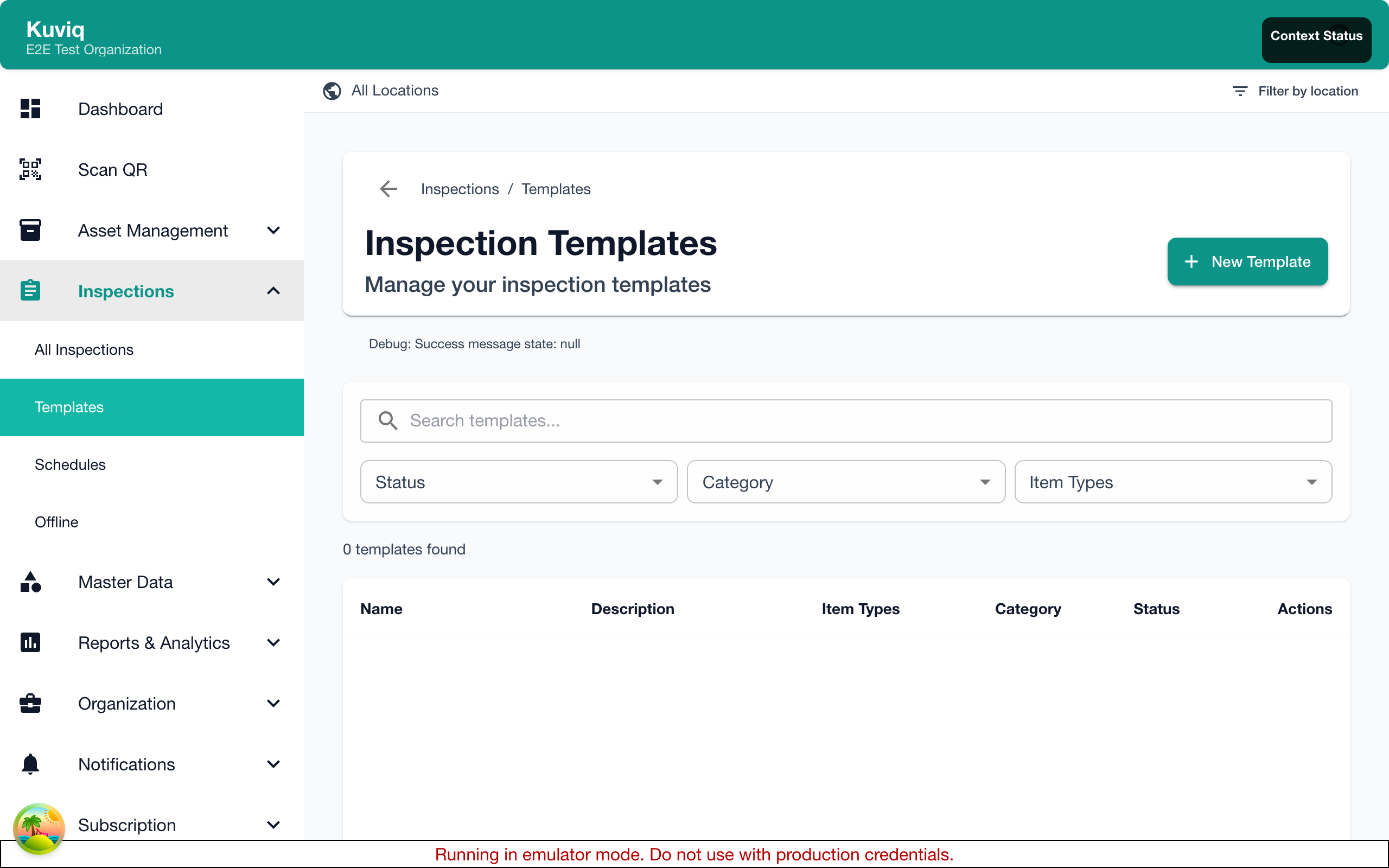
The Template List
The list shows:
| Column | Description |
|---|---|
| Name | Template name |
| Items Using | Number of item types using this template |
| Elements | Number of inspection elements |
| Default Interval | How often inspections are required |
| Status | Active or Draft |
Creating a Template
Basic Setup
- Click Add Template
- Enter the template name (e.g., "Fire Extinguisher Monthly Check")
- Add a description
- Set as Draft to work on it, or Active to use immediately
- Save
Template Naming
| Good Names | Why |
|---|---|
| Fire Extinguisher - Monthly | Clear purpose and frequency |
| Ladder Pre-Use Inspection | When it's used |
| Vehicle Daily Checklist | Specific and clear |
Inspection Elements
Elements are the individual items to check during an inspection.
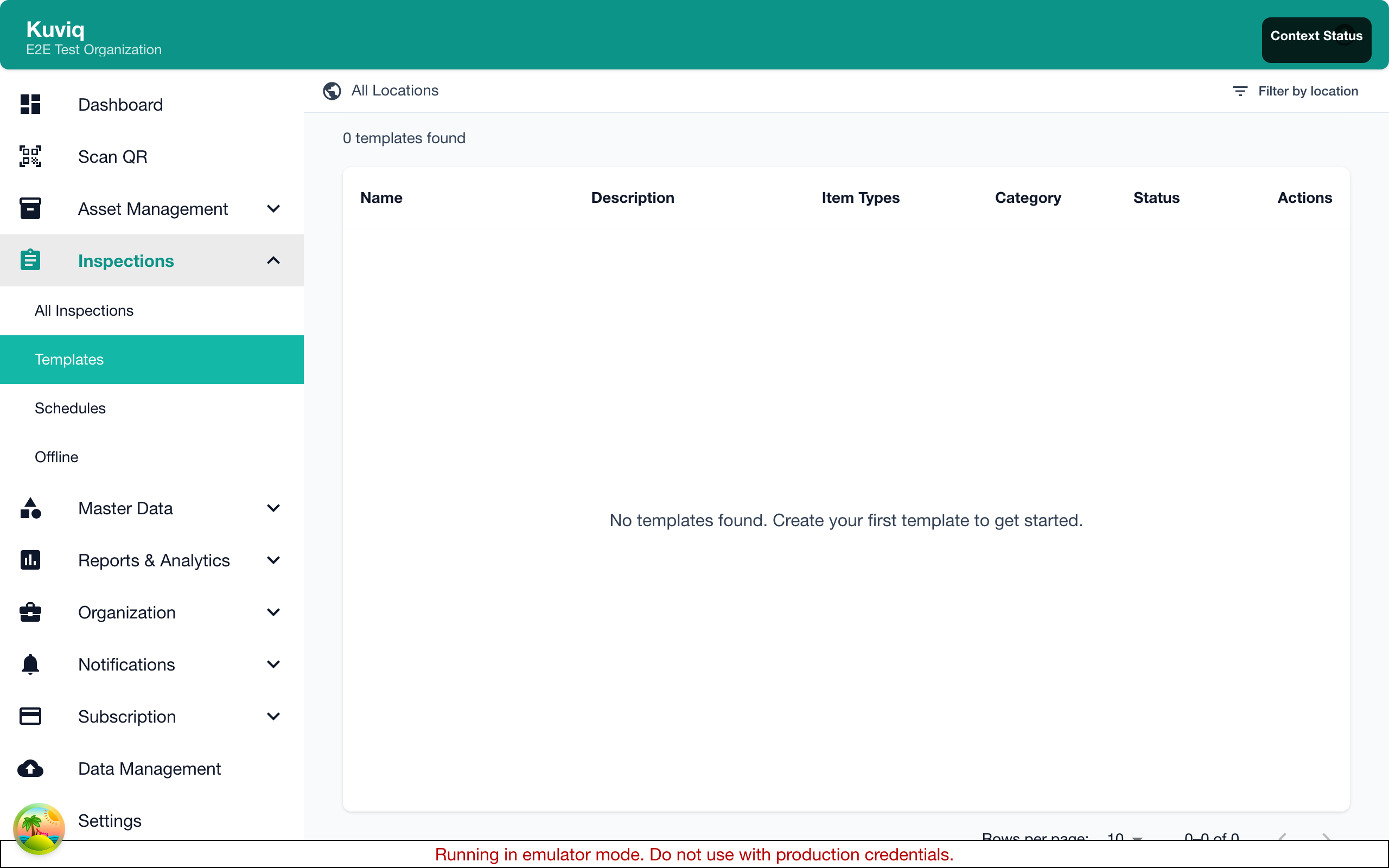
Adding Elements
- Edit the template
- Click Add Element
- Configure the element (see types below)
- Save
Element Types
Pass/Fail
Simple yes/no or pass/fail checkbox.
Use for:
- Safety checks ("Guard is in place")
- Condition checks ("No visible damage")
- Compliance items ("Tag is attached")
Configuration:
- Label (the question/statement)
- Fail value (what triggers a failure)
- Required (must be answered)
Example:
Label: "Safety pin is intact"
Fail condition: "No" or "Fail"
Required: Yes
Text
Free-form text entry.
Use for:
- Observations ("Describe any damage")
- Notes ("Additional comments")
- Serial numbers to verify
Configuration:
- Label
- Placeholder text
- Required
- Minimum/maximum length
Number
Numeric input with optional range validation.
Use for:
- Measurements ("Tire pressure (PSI)")
- Readings ("Temperature")
- Counts ("Number of items")
Configuration:
- Label
- Unit (PSI, kg, etc.)
- Minimum value
- Maximum value
- Fail if outside range
Example:
Label: "Pressure reading"
Unit: "PSI"
Minimum: 100
Maximum: 200
Fail if: Below 100 or above 200
Multiple Choice
Select from predefined options.
Use for:
- Condition ratings ("Good / Fair / Poor")
- Categories ("Action: None / Repair / Replace")
- Statuses
Configuration:
- Label
- Options (list)
- Allow multiple selections
- Fail values (which options trigger failure)
Photo
Image capture or upload.
Use for:
- Documentation ("Photo of equipment")
- Evidence ("Photo of any defects")
- Before/after comparison
Configuration:
- Label
- Required
- Minimum photos
- Maximum photos
Date
Date selection.
Use for:
- Expiry verification ("Calibration expiry date")
- Last service dates
- Next action dates
Configuration:
- Label
- Required
- Fail if past date (for expiry dates)
Signature
Digital signature capture.
Use for:
- Inspector acknowledgment
- Supervisor approval
- Compliance sign-off
Configuration:
- Label
- Required
- Who must sign (Inspector, Supervisor)
Section Header
Organize elements into logical groups.
Use for:
- Separating inspection areas
- Grouping related checks
- Improving readability
Element Order
Elements appear in the order you define:
- Drag elements to reorder
- Use section headers to group
- Put critical items first
- Logical flow (top to bottom, front to back)
Required Elements
Mark elements as required when:
- The check is critical for safety
- Data is needed for compliance
- The inspection is incomplete without it
Don't make everything required—it can slow inspectors down.
Pass/Fail Conditions
How Failures Work
An inspection fails when any element meets its fail condition:
- Pass/fail element marked as "Fail"
- Number outside acceptable range
- Multiple choice with fail option selected
- Date past expiry (if configured)
Fail Actions
When an inspection fails:
- Inspection is marked as failed
- Notifications sent (if configured)
- Item status may change (if configured)
- Corrective action workflow may start
Configuring Fail Conditions
For each element, specify what triggers failure:
| Element Type | Fail Condition Options |
|---|---|
| Pass/Fail | "No" or "Fail" selected |
| Number | Below minimum, above maximum |
| Multiple Choice | Specific options selected |
| Date | Past date selected |
Template Settings
Inspection Interval
Set how often inspections are required:
| Interval | Use Case |
|---|---|
| Daily | Pre-use checks, high-risk equipment |
| Weekly | Regular equipment checks |
| Monthly | Standard maintenance items |
| Quarterly | Seasonal equipment |
| Annually | Annual certifications |
| Custom | Specific requirements |
Warning Period
How many days before due to show warnings:
- 7 days - Standard
- 14 days - Advance planning needed
- 30 days - Long lead time items
Grace Period
How many days after due before marking overdue:
- 0 days - Strict compliance
- 3 days - Some flexibility
- 7 days - More flexibility
Notifications
Configure alerts for this template:
| Notification | Description |
|---|---|
| Due Soon | When inspection enters warning period |
| Due Today | Day of scheduled inspection |
| Overdue | After due date passes |
| Failed | When inspection fails |
Equipment Set Integration
Complete Inspection Requirement
When configuring equipment sets, you can enable Complete Inspection Required. This setting works alongside inspection templates to encourage inspecting all items in a set together.
When enabled:
- Starting an individual inspection on a set item shows a warning dialog
- The dialog recommends using the set inspection flow instead
- Users can dismiss and continue with individual inspection if needed
This is configured per equipment set, not per template. See Equipment Sets for details.
Block on Failure
Equipment sets can also be configured with Block on Failure, which prevents the set from being used if any item fails its inspection. This works with any inspection template assigned to the items in the set.
Linking to Item Types
Default Template
Associate a template with an item type:
- Go to Admin > Item Types
- Edit the item type
- Select this template as the default
- Save
Multiple Templates per Type
An item type can use multiple templates:
- Different inspection frequencies
- Different inspection depths
- Different regulatory requirements
The default is pre-selected; inspectors can choose others.
Versioning
Template Changes
When you modify a template:
- Past inspections keep their original structure
- Future inspections use the new template
- Changes are tracked in history
Major vs Minor Changes
Minor changes (safe anytime):
- Fixing typos
- Adding help text
- Reordering elements
Major changes (consider carefully):
- Adding required elements
- Changing fail conditions
- Removing elements
Creating a New Version
For major changes, consider:
- Create a new template (v2)
- Test with a few items
- Update item types to use the new template
- Archive the old template
Example Templates
Fire Extinguisher Monthly
Section: Visual Inspection
- [ ] Mounted in designated location (Pass/Fail)
- [ ] No visible damage or rust (Pass/Fail)
- [ ] Pressure gauge in green zone (Pass/Fail)
- [ ] Safety pin and tamper seal intact (Pass/Fail)

Section: Tag and Certification
- [ ] Inspection tag attached (Pass/Fail)
- Service date: [Date picker]
- Expiry date: [Date picker, fail if past]

Section: Documentation
- Photo of extinguisher: [Photo]
- Photo of tag: [Photo]
- Notes: [Text]

Section: Sign-off
- Inspector signature: [Signature]
Pre-Use Ladder Inspection
Section: General Condition
- [ ] No visible damage to rails (Pass/Fail)
- [ ] All rungs secure and undamaged (Pass/Fail)
- [ ] No cracks or splits (Pass/Fail)
- [ ] All hardware tight (Pass/Fail)

Section: Safety Features
- [ ] Non-slip feet present and in good condition (Pass/Fail)
- [ ] Locking mechanisms work (Pass/Fail)
- [ ] Warning labels legible (Pass/Fail)

Section: Assessment
- Overall condition: [Dropdown: Good/Fair/Poor]
- Notes: [Text]
Best Practices
Design Principles
- Clear language - Anyone should understand
- Logical order - Follow natural inspection flow
- Appropriate depth - Match risk level
- Photo evidence - When documentation matters
What to Include
| Always Include | Consider Including |
|---|---|
| Safety-critical checks | Photo documentation |
| Regulatory requirements | Measurements |
| Pass/fail criteria | Notes fields |
| Inspector sign-off | Supervisor sign-off |
What to Avoid
- Too many elements - Inspections take too long
- Vague questions - Results are inconsistent
- Everything required - Slows inspectors down
- No fail conditions - Failures not captured
Troubleshooting
Template Not Available
- Check template status is "Active"
- Verify item type association
- Check user has permission to use template
Inspections Not Scheduling
- Verify interval is set
- Check item is assigned this template
- Ensure scheduling is enabled
Pass/Fail Not Working
- Verify fail conditions are configured
- Check element is required
- Test with expected fail values
Importing/Exporting
Export Template
- Click on template
- Click Export
- Download as JSON or PDF
Import Template
- Click Import
- Upload template file
- Review and adjust
- Save
Useful for sharing templates across organizations.
Next Steps
- Inspection Scheduling - Set up schedules
- Item Types - Link templates to types
- Performing Inspections - Use templates