Equipment Sets
Learn how to manage equipment sets - logical groupings of items that are used together but require individual inspection tracking.
What Are Equipment Sets?
Equipment sets represent collections of items that are physically used together as a unit, but each item has its own inspection requirements. Unlike regular item groups, equipment sets provide:
- Individual inspection tracking - Each item maintains its own inspection schedule
- Set-level inspection workflow - Inspect all items in sequence
- Compliance monitoring - Track overall set compliance status
- Automatic blocking - Block sets when items fail inspection
- Set reports - View comprehensive compliance reports
Example Use Cases
| Set Name | Items | Purpose |
|---|---|---|
| Climbing Kit #1 | Harness, Rope, Carabiners, Belay Device | Complete climbing safety equipment |
| Rescue Equipment A | Stretcher, First Aid Kit, AED | Emergency response kit |
| Welding Station 3 | Welder, Mask, Gloves, Apron | Complete welding workstation |
| Fire Response Kit | Extinguisher, Blanket, Hose | Fire safety equipment set |
Accessing Equipment Sets
Navigation
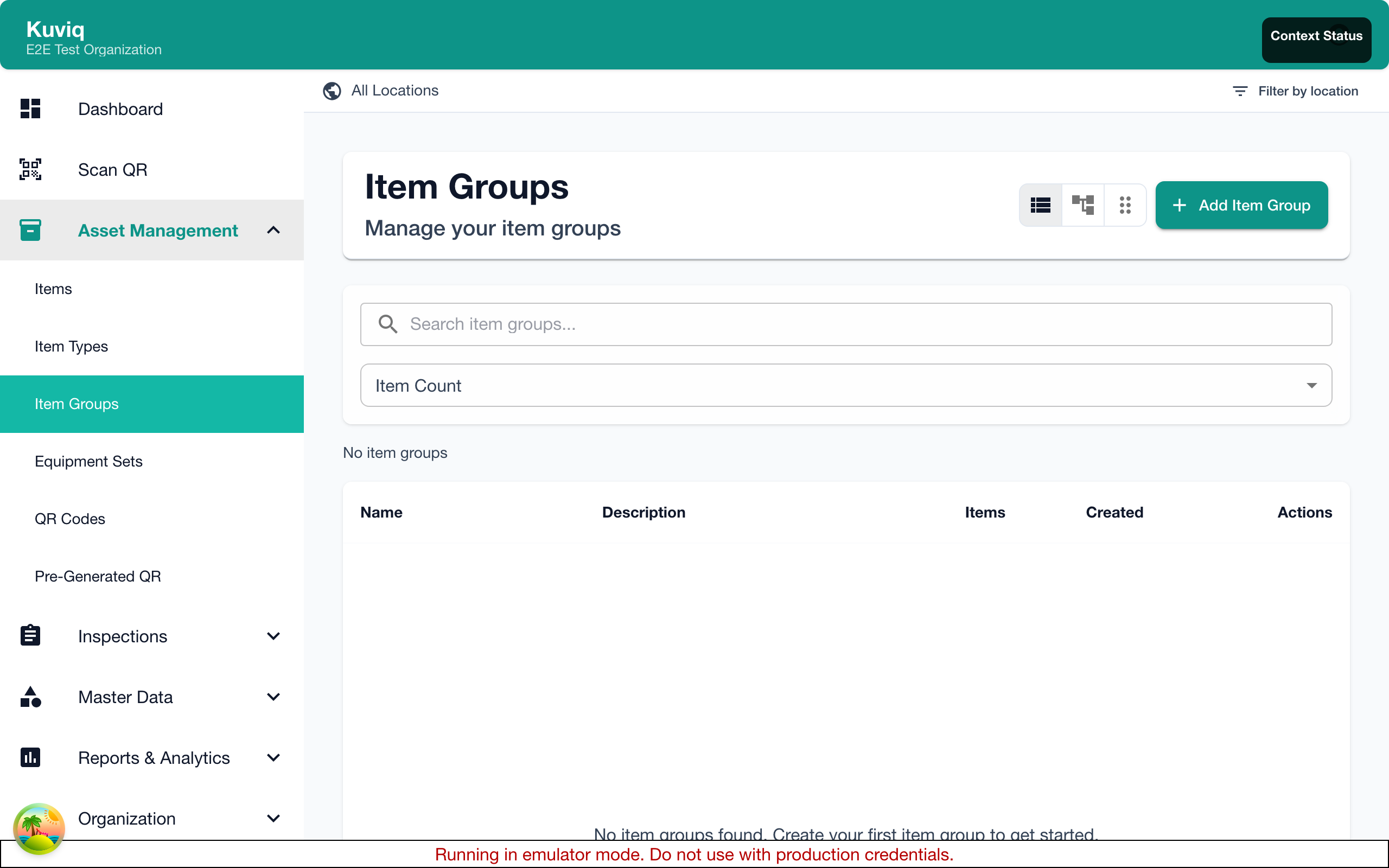
- Go to Items > Equipment Sets in the main menu
- View all equipment sets in your organization
Equipment Sets List
The list shows:
| Column | Description |
|---|---|
| Name | Set name and identifier |
| Status | Overall compliance status |
| Items | Number of items in the set |
| Next Inspection | When the next item inspection is due |
| Actions | Quick actions (Inspect, Edit, Delete) |
Status Indicators
Equipment sets display status badges based on item inspection status:
| Status | Color | Meaning |
|---|---|---|
| OK | Green | All items have valid inspections |
| Due Soon | Yellow | At least one item has inspection due soon |
| Overdue | Orange | At least one item has overdue inspection |
| Failed | Red | At least one item failed last inspection |
| Blocked | Red with icon | Set is blocked due to failed items |
Creating an Equipment Set
Using the Creation Wizard
- Go to Items > Equipment Sets
- Click Create Set or +
- Complete the wizard steps:
Step 1: Basic Information
- Set Name - Descriptive name (e.g., "Climbing Kit #1") (required)
- Description - What the set contains
- Set Identifier - Visual identifier code (e.g., color code, tag number)
- Category - Optional category for organization (e.g., "Fall Protection")
Step 2: Configuration
- Permanent Set - Items cannot be removed individually
- Complete Inspection Required - All items must be inspected together (see Complete Inspection Enforcement)
- Block on Failure - Set is blocked if any item fails inspection
- Custom Fields - Add set-specific metadata as key-value pairs
Step 3: Select Items
- Search or browse available items by name, serial number, QR code, or barcode
- Filter by item type using the dropdown
- Select items to include in the set
- Designate a Primary Item (optional) by clicking the star icon
The primary item represents the main piece of equipment in the set. Its status is shown prominently on the set card.
Each item can only belong to one equipment set. Items already assigned to another set are automatically filtered out of the available list.
Step 4: Review & Create
- Review all settings in summary cards
- Click Create Set
Viewing Set Details
Set Detail Page
Click on any equipment set to view its details:
Tabs
| Tab | Content |
|---|---|
| Items | List of items with their inspection status |
| History | Recent set inspection sessions |
| Report | Comprehensive compliance report |
Information Panel
- Set status and compliance percentage
- Configuration settings
- Created/updated timestamps
- Last inspection date
Inspecting an Equipment Set
Equipment sets support a streamlined inspection workflow where you inspect all items in sequence.
Starting a Set Inspection
- Open the equipment set
- Click Start Inspection
- The inspection wizard guides you through each item
During Inspection
For each item:
- View item details and template
- Complete the inspection checklist
- Mark as Pass, Fail, or Skip
- Move to next item
Navigation
- Previous/Next - Navigate between items
- Skip - Skip an item (can return later)
- Cancel - Cancel the entire session
Completing Inspection
After all items:
- Review results summary
- See pass/fail counts
- View overall set status
- Print or export results
Complete Inspection Enforcement
When an equipment set has Complete Inspection Required enabled, Kuviq encourages users to inspect all items in the set together rather than individually.
How It Works
If you try to start an individual inspection on an item that belongs to a set with this setting:
- A warning dialog appears: "Complete Set Inspection Recommended"
- The dialog explains the item belongs to a set that requires complete inspection
- You have two options:
- Go to Set Inspection - Navigate to the equipment set to start a full set inspection
- Continue Anyway - Dismiss the warning and proceed with the individual inspection
This is a recommendation, not a hard block. Users can always choose to continue with an individual inspection if needed.
Where the Warning Appears
The warning is shown at all individual inspection entry points:
- Item detail page "Start Inspection" button
- Next inspection widget on the dashboard
- Inspection links from item lists
Importing Equipment Sets
You can bulk-import equipment sets from CSV or Excel files using the Import Wizard.
CSV Format
| Column | Required | Description |
|---|---|---|
name | Yes | Set name |
description | No | Set description |
location | No | Location name |
items | No | Semicolon-separated item serial numbers |
Example CSV
name,description,location,items
Climbing Kit #1,Complete climbing safety set,Warehouse,SN-001; SN-002; SN-003
Rescue Kit A,Emergency response equipment,Building A,SN-010; SN-011
Import Rules
- The import wizard auto-detects equipment set CSVs by their column structure (presence of
nameanditemscolumns) - Items are matched by serial number (case-insensitive)
- Items must already exist in the system
- Exclusivity is enforced: the same item serial number cannot appear in multiple sets within the same import
- A downloadable CSV template with sample rows is available in the Import Wizard
See Bulk Import for the full import workflow.
Set Reports
Accessing Reports
- Open the equipment set
- Click the Report tab
Report Contents
| Section | Information |
|---|---|
| Status Overview | Overall status, item count, compliance % |
| Status Breakdown | Count by status (OK, Due Soon, Overdue, Failed) |
| Item Details | Table of all items with inspection dates |
| Inspection History | Recent set inspection sessions |
Export Options
- Print - Print the report
- PDF - Download as PDF
- CSV - Export item data
Managing Equipment Sets
Editing a Set
- Open the set
- Click Edit
- Modify name, description, or configuration
- Save changes
Adding/Removing Items
- Open the set
- Go to Items tab
- Click Add Items to add new items
- Click the remove icon to remove items
If the set is configured as "Permanent", you cannot remove individual items.
Setting Primary Item
- Open the set
- Go to Items tab
- Click Set as Primary on the desired item
Cloning a Set
Create a copy of an existing set:
- Open the set
- Click the Clone icon
- Enter a new name
- Click Clone
Deleting a Set
- Open the set
- Click Delete
- Confirm deletion
Deleting a set does not delete the items. Items remain in your inventory.
Blocked Sets
What Causes Blocking?
If configured with "Block on Failure":
- Any item failing inspection blocks the entire set
- Set cannot be used until all items pass
- Shows prominent blocked status
Unblocking a Set
- Re-inspect the failed item(s)
- Ensure all items pass
- Set automatically unblocks
Best Practices
Organizing Equipment Sets
| Tip | Reason |
|---|---|
| Use descriptive names | Easy identification |
| Include identifier codes | Track physical equipment |
| Set meaningful categories | Filter and organize |
| Designate primary items | Quick status overview |
Inspection Workflow
- Inspect sets regularly as a unit
- Don't skip items unless necessary
- Address failures immediately
- Use the Report tab to track compliance
Configuration Choices
| Setting | When to Use |
|---|---|
| Permanent | Equipment that must stay together |
| Complete Inspection | Safety-critical equipment |
| Block on Failure | Equipment that cannot be used if any part fails |
Equipment Sets vs. Item Groups
| Feature | Equipment Sets | Item Groups |
|---|---|---|
| Individual item inspection | Yes | No |
| Set-level inspection workflow | Yes | No |
| Compliance tracking | Yes | No |
| Blocking on failure | Yes | No |
| Bulk scheduling | No | Yes |
| Hierarchical structure | No | Yes |
Use Equipment Sets when items are used together but need individual tracking. Use Item Groups for organizational grouping and bulk operations.
Common Questions
Can an item be in multiple equipment sets?
No. Each item can only belong to one equipment set at a time. This exclusivity is enforced when creating sets, adding items, and during CSV import. To move an item to a different set, remove it from the current set first.
What happens to inspections when I remove an item?
The item's inspection history is preserved. The item simply no longer belongs to the set.
Can I schedule recurring set inspections?
Currently, set inspections are initiated manually. Individual items can have their own recurring schedules.
How is compliance percentage calculated?
Compliance = (Items with OK or Due Soon status) / Total Items × 100
Next Steps
- Creating Items - Add items to include in sets
- Item Groups - Learn about general item grouping
- Inspections - Understand inspection workflows