Usage Monitoring
Track your Kuviq usage against subscription limits.
Overview
The usage page helps you:
- Monitor current usage vs plan limits
- Plan for growth
- Avoid unexpected limit issues
- Decide when to upgrade
Accessing Usage
- Navigate to Admin > Subscription
- Click on Usage tab
Or directly to Admin > Usage.
Usage Dashboard
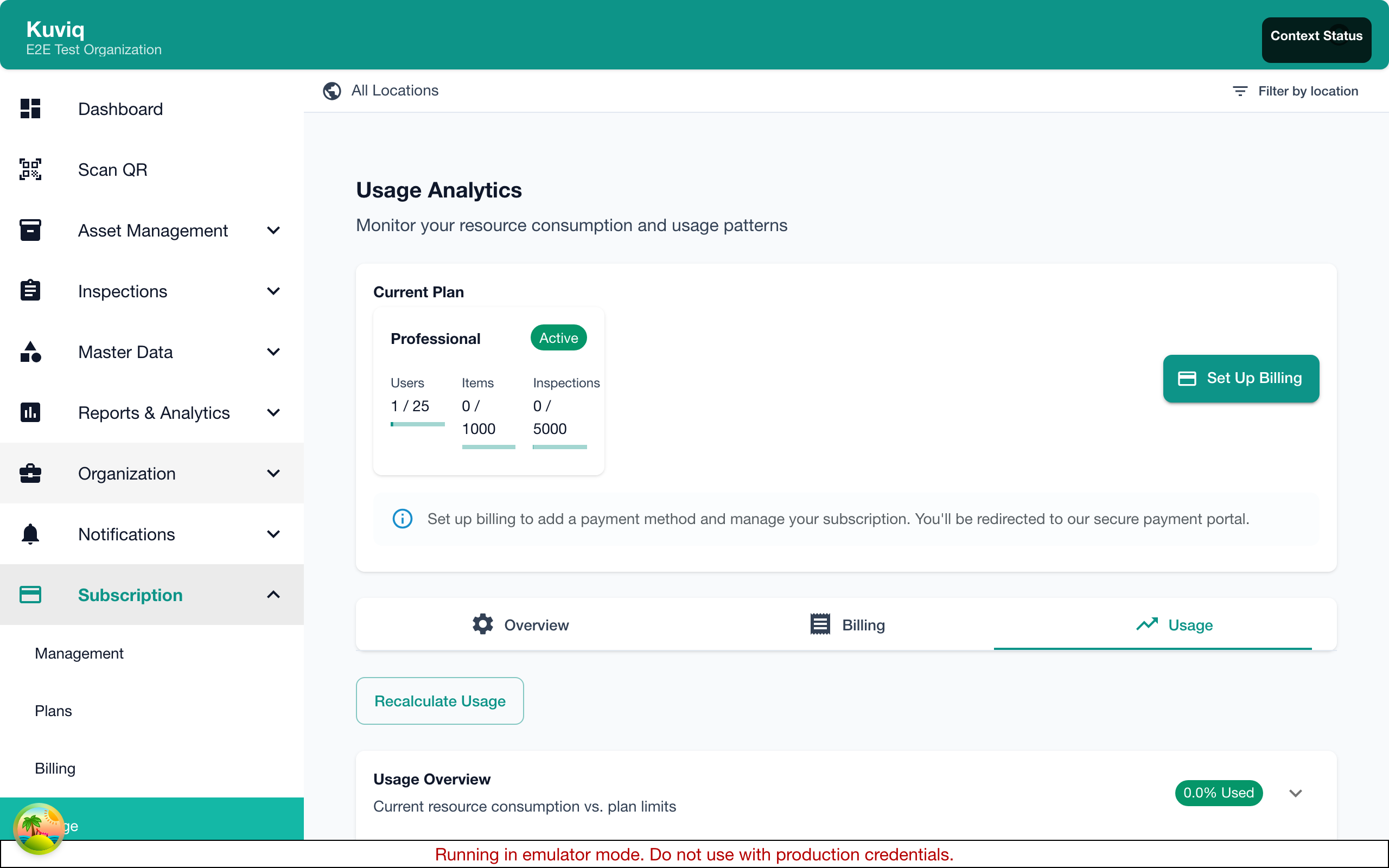
Overview Cards
The dashboard shows at-a-glance usage:
| Metric | What It Shows |
|---|---|
| Items | Current / Limit |
| Users | Active / Limit |
| Locations | Count / Limit |
| Storage | Used / Allocated |
Visual Indicators
Usage bars show status:
| Color | Meaning |
|---|---|
| Green | Healthy usage (under 70%) |
| Yellow | Approaching limit (70-90%) |
| Red | Near/at limit (over 90%) |
Tracked Metrics
Items
What counts:
- Active items in your organization
- Includes all item statuses except deleted
What doesn't count:
- Deleted items
- Archived items (if feature enabled)
Users
What counts:
- Active users
- Pending invitations
What doesn't count:
- Deactivated users
Locations
What counts:
- All locations (parent and child)
- Active locations only
Storage
What counts:
- Inspection photos
- Uploaded documents
- Exported reports (retained temporarily)
What doesn't count:
- System data
- Configuration
Inspections
Inspections typically don't have limits, but you can track:
- Monthly inspection count
- Historical trends
- Inspections by type
Usage Alerts
Automatic Alerts
Receive notifications when:
| Alert | Trigger |
|---|---|
| Approaching Limit | 80% of limit reached |
| At Limit | 100% of limit reached |
| Over Limit | Usage exceeds plan limit |
Daily Threshold Notifications
When your usage approaches or exceeds plan limits, Super Admins receive daily threshold notifications that include:
- Current usage vs. plan limit
- Overage amount (if applicable)
- Estimated overage charges
- Link to manage usage or upgrade
Alert Recipients
Alerts are sent to:
- Super Admins
- Admins (optional)
- Custom email list (configurable)
Configuring Alerts
- Go to Admin > Usage
- Click Alert Settings
- Configure:
- Alert thresholds
- Recipients
- Frequency
- Save
Usage Trends
Historical Usage
View usage over time:
- Go to Usage page
- Select metric (Items, Users, etc.)
- Choose time period
- View trend graph
Trend Analysis
The graph shows:
- Daily/weekly/monthly usage
- Growth rate
- Seasonal patterns
- Projection to limit
Forecasting
Based on trends, see:
- Estimated time to reach limit
- Recommended upgrade timing
- Growth rate calculation
Approaching Limits
When Approaching Item Limit
Options:
- Upgrade - Move to higher plan
- Archive - Archive unused items
- Delete - Remove unnecessary items
- Review - Audit for duplicates
When Approaching User Limit
Options:
- Upgrade - Add more user seats
- Deactivate - Remove inactive users
- Review - Check for unused accounts
When Approaching Storage Limit
Options:
- Upgrade - Increase storage allocation
- Clean up - Remove old attachments
- Export - Export and archive old data
At the Limit
What Happens
When you reach or exceed a plan limit, behavior depends on the resource type:
| Metric | What Happens |
|---|---|
| Users (seats) | Additional users billed as per-seat overages |
| Items | Overage charges apply or creation blocked (plan-dependent) |
| Locations | May be blocked on Starter plan |
| Storage | Cannot upload new files until storage is freed |
Overage Billing
Instead of hard-blocking, many resources now support overage billing:
- Overages are tracked automatically
- Charges appear as line items on your next invoice
- Super Admins can review overage rates in Admin > Subscription > Overage Settings
- Daily threshold notifications keep you informed
Existing Access
When at or over limit:
- Existing data remains accessible
- Can edit existing records
- Can delete to free space
- Can complete in-progress inspections
Managing Overages
- Quick fix: Deactivate unused users or archive items to reduce count
- Short term: Review overage pricing and adjust as needed
- Long term: Upgrade to a plan with higher included limits
Managing Usage
Reducing Item Count
To free up item slots:
- Go to Items
- Filter by status or date
- Identify unused items
- Delete or archive
Reducing User Count
To free up user seats:
- Go to Admin > Users
- Review last active dates
- Deactivate inactive users
Reducing Storage
To free up storage:
- Review large attachments
- Export old inspection photos
- Remove unnecessary files
Usage Reports
Generating Reports
- Go to Admin > Usage
- Click Generate Report
- Select:
- Time period
- Metrics to include
- Format (PDF, CSV)
- Download
Report Contents
Usage reports include:
- Current usage snapshot
- Historical trends
- Growth projections
- Recommendations
Scheduled Reports
Set up automatic usage reports:
- Go to Usage > Reports
- Click Schedule Report
- Configure:
- Frequency (weekly, monthly)
- Recipients
- Metrics
- Save
API Access for Usage
Usage API
If you have API access:
GET /api/v1/organization/usage
Returns current usage data for integration.
Use Cases
- Internal dashboards
- Capacity planning tools
- Automated monitoring
Best Practices
Regular Monitoring
- Check usage weekly
- Set alert thresholds appropriately
- Review trends monthly
- Plan upgrades proactively
Capacity Planning
- Track growth rate
- Forecast future needs
- Budget for upgrades
- Avoid last-minute scrambles
Data Hygiene
- Regularly archive old items
- Deactivate departed users promptly
- Clean up unused test data
- Review duplicates
Troubleshooting
Usage Seems Wrong
- Check what's counted (active vs all)
- Review recent additions
- Check for pending items
- Contact support if discrepancy
Alerts Not Received
- Verify alert settings
- Check spam folder
- Confirm email addresses
- Test alert delivery
Can't Reduce Usage
- Some items may have dependencies
- Users may have assigned items
- Contact support for help